advancedSmart Home & IoT16-May-2020
How to make a GPS tracker for monitoring your child

Anton Shagaev
Tashkent, UZ
1 day
--
32
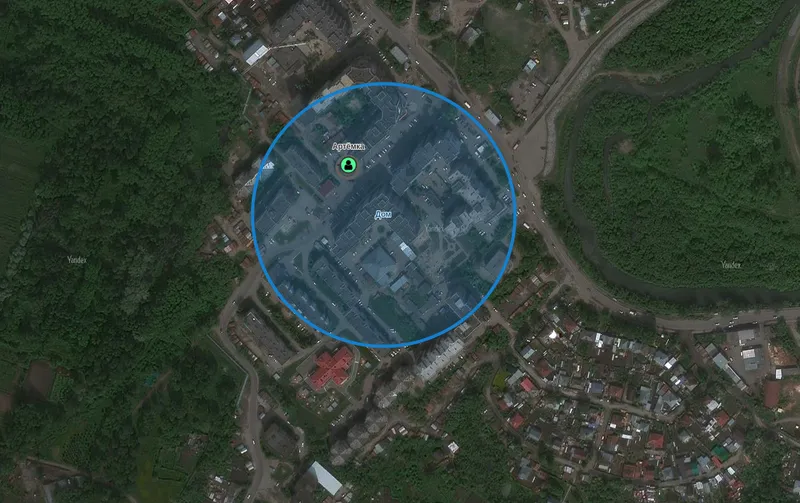
Friends, today I will tell you about how to make a GPS tracker to monitor your children while they walk outside alone. My son often travels to karate competitions, and also walks alone with friends on the street, and now I can know exactly where he is within ten meters. The solution is based on the Russian development of the free open-source GPS server Traccar. Traccar supports more than 170 GPS protocols and more than 1500 models of GPS trackers.
What you'll need
Materials
- 1 pc
- 1 pc
- Smartphone on Android or iOS1 pc
- 1 pc
- Hosting with domain name1 pc
Steps
1
Installing a server on Linux
To avoid repetition, I will provide a link to the server installation on CentOS, which was discussed in the previous guide:
The installation implies using a home server as hosting for the Traccar server.
2
Traccar server installation
Server installation is extremely simple.
In the terminal, go to the home folder:
tinkster@almalinux:~#
1cd ~
Download the Traccar distribution:
tinkster@almalinux:~#
1wget https://github.com/traccar/traccar/releases/download/v4.8/traccar-linux-64-4.8.zip
Extract the ZIP archive:
tinkster@almalinux:~#
1unzip traccar-linux-64-4.8.zip
Run the traccar.run file:
tinkster@almalinux:~#
1sudo ./traccar.run
The script will install all necessary files.
Next, let's create the traccar user:
tinkster@almalinux:~#
1sudo useradd -s /sbin/nologin -r -M -d /bin/false traccar
Then, open the file:
tinkster@almalinux:~#
1sudo nano /opt/traccar/conf/traccar.xml
Add the following lines to this file before the </properties> tag (this is needed to receive email notifications when a certain event occurs, for example, when your child leaves the so-called 'geo-fence'). This configuration is specified for my mail server; in your case, the data will be different.
tinkster@almalinux:~#
1<entry key = 'web.url'>https://trac.domain.ru/</entry> # Subdomain name for Tracrcar2<entry key='mail.smtp.host'>mail.domain.ru</entry> # Mail server host3<entry key='mail.smtp.port'>587</entry> # SMTP port4<entry key='mail.smtp.starttls.enable'>true</entry> # Specify STARTTLS encryption5<entry key='mail.smtp.from'>[email protected]</entry> # Return email address6<entry key='mail.smtp.auth'>true</entry> # Specify that SMTP requires authentication7<entry key='mail.smtp.username'>[email protected]</entry> # Email address8<entry key='mail.smtp.password'>Password</entry> # Email password
Also, from the file /opt/traccar/conf/default.xml:
tinkster@almalinux:~#
1sudo nano /opt/traccar/conf/default.xml
Remove this line:
tinkster@almalinux:~#
1<entry key='server.statistics'>https://www.traccar.org/analytics/</entry>
Start Traccar and set it to autostart when the Linux server boots:
tinkster@almalinux:~#
1sudo systemctl start traccar2sudo systemctl enable traccar
Next, open a browser and enter the address:
http://server-ip-address:8082/?locale=ru
Where server-ip-address is the server's local IP address
Log in to the system, default email: admin and password: admin
After logging into the system, immediately change the login and password.
Next, let's create the traccar.service.d folder:
tinkster@almalinux:~#
1sudo mkdir -m 755 /etc/systemd/system/traccar.service.d
In it, create the run-as-user.conf file:
tinkster@almalinux:~#
1sudo nano /etc/systemd/system/traccar.service.d/run-as-user.conf
And insert the following lines into it:
tinkster@almalinux:~#
1[Service]2User=traccar3Group=traccar
This is needed so that Traccar runs as the traccar user, not as root (superuser).
Save the file.
Restart the systemd manager configuration:
tinkster@almalinux:~#
1sudo systemctl daemon-reload
Restart Traccar:
tinkster@almalinux:~#
1sudo systemctl restart traccar
3
Installing Nginx server and configuring Proxy Pass for Traccar
The Nginx server is needed to proxy connections from port 80 of your server's subdomain to port 8082 of the Traccar server.
Let's install Nginx:
tinkster@almalinux:~#
1sudo yum install nginx
Create a configuration file on the Nginx server:
tinkster@almalinux:~#
1sudo nano /etc/nginx/conf.d/trac.domain.conf
And insert the following into it:
tinkster@almalinux:~#
1server {2listen 80;3server_name trac.domain.ru;4return 301 https://trac.domain.ru$request_uri;5}67server {8listen 443 ssl;9ssl_certificate /etc/letsencrypt/live/trac.domain.ru/fullchain.pem;10ssl_certificate_key /etc/letsencrypt/live/trac.domain.ru/privkey.pem;1112server_name trac.domain.ru;1314client_max_body_size 10M;15client_body_buffer_size 128k;1617location / {18proxy_set_header Host $host;19proxy_set_header X-Forwarded-Host $host;20proxy_set_header X-Forwarded-Server $host;21proxy_set_header X-Forwarded-For $proxy_add_x_forwarded_for;22proxy_http_version 1.1;23proxy_set_header Upgrade $http_upgrade;24proxy_set_header Connection "upgrade";2526proxy_redirect http://127.0.0.1:8082/ /;27proxy_redirect ws://127.0.0.1:8082/api/socket /api/socket;28proxy_pass http://127.0.0.1:8082/;29proxy_read_timeout 86400s;30proxy_send_timeout 86400s;31allow all;32}3334}
Next, add the subdomain to the hosts file:
tinkster@almalinux:~#
1sudo nano /etc/hosts
And add on a new line:
tinkster@almalinux:~#
1127.0.0.1 trac.domain.ru
Save the file and restart Nginx:
tinkster@almalinux:~#
1sudo systemctl restart nginx
Let's install Certbot from Letsencrypt:
tinkster@almalinux:~#
1sudo yum install epel-release2sudo yum install certbot python2-certbot-apache mod_ssl
Next, obtain an encryption certificate from Letsencrypt:
tinkster@almalinux:~#
1sudo cerbot --nginx
Follow the installer's instructions.
After the certificate installation is complete, restart Nginx:
tinkster@almalinux:~#
1sudo systemctl restart nginx
Now you will be able to access Traccar at the address:
https://trac.domain.ru?locale=ru
4
Installing Traccar Client on a child's smartphone
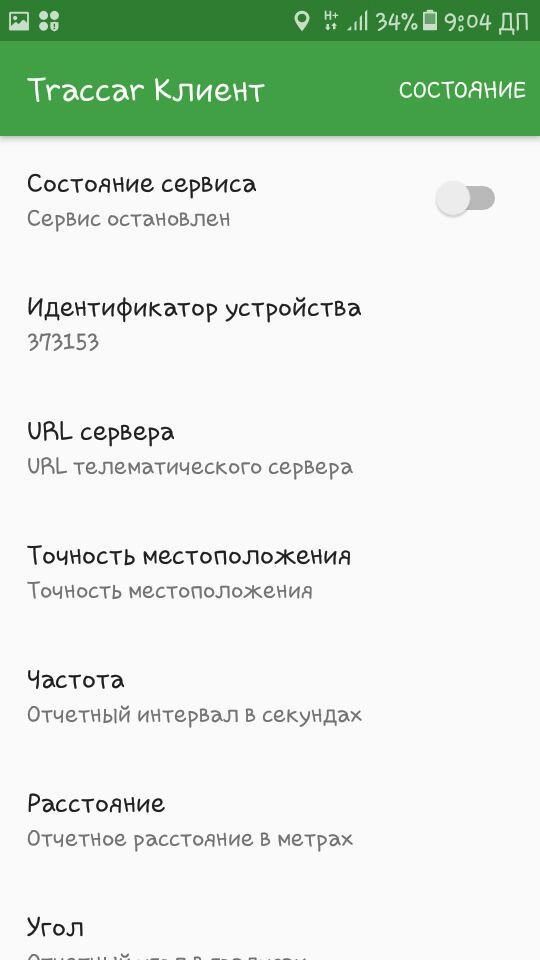
Installing Traccar Client on a child's smartphone
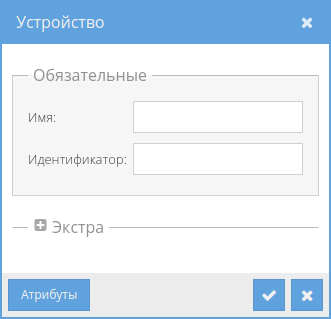
Installing Traccar Client on a child's smartphone
Install the Traccar Client application on your child's smartphone.
Enable geolocation and grant Traccar Client permission to use geolocation data.
Open the application and in the 'Server URL' field, enter the Traccar server address:
https://trac.domain.ru
In the 'Frequency' field, set the data update frequency in seconds.
Next, in the 'Service Status' field, enable the client and remember the 'Device Identifier' in the field below.
Go to our server in a browser
https://trac.domain.ru?locale=ru
Log into the system, click the plus icon in the upper left corner, and the following window will appear:
Enter your child's name and the device identifier from the Android application into it.
Click the confirmation checkmark, and from this moment, you will see all your child's movements outdoors.
The system also offers options to set up a so-called 'geo-fence' so that you receive email notifications if your child goes too far from home.
To monitor your child using a smartphone, download the application Traccar Manager and log into your account with your username and password.
May your children always be under supervision!
Discussion (0)
No comments yet. Be the first!
Maker
Anton Shagaev
Tashkent, UZ
Anton is the Founding Engineer at Tinkster. He translates industrial reliability into software architecture, ensuring the platform's core is built to last. Anton studied oil and gas engineering in the United States and also holds two honors degrees from Tomsk Polytechnic University.
Related Projects




AI Project Assistant
Tinkster Neural Core
Hi! I am the AI assistant for this project. Ask me any questions about the assembly, code, or components.