intermediateLinux & Homelab16-Sept-2016
Entering Linux using a fingerprint biometric scanner

Anton Shagaev
Tashkent, UZ
1 day
--
33
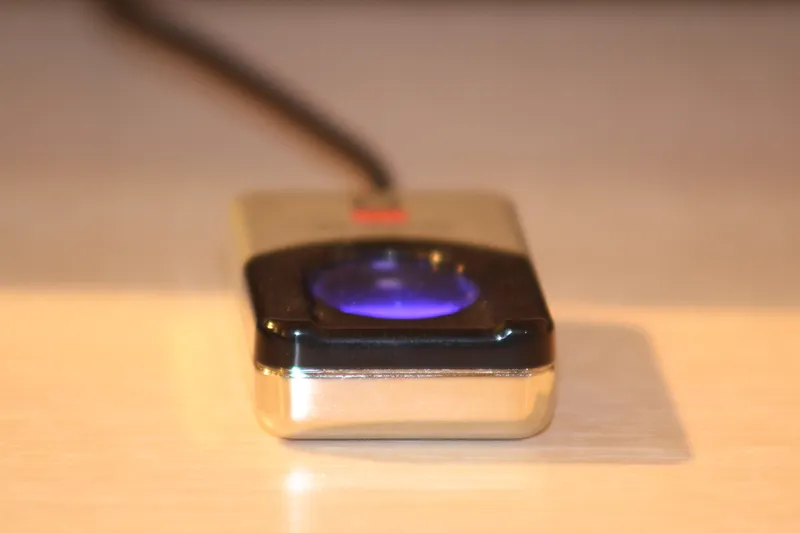
After I stopped using Windows 7 two years ago, my main platform became Xubuntu, which is a Linux distribution based on the Debian operating system. I admit honestly, I did not delete Windows 7, because I sometimes have to work with software products such as Ansys and AutoCAD, which only work on Windows (except for Ansys, which works on both platforms). I take the security and protection of my computer's data quite seriously, so my administrator (root) password is very long. In Xubuntu, this password has to be entered quite frequently when installing programs via the terminal, updating the system, or logging into the Synaptic Package Manager installer. I decided to automate this process to avoid spending too much time entering my long password, specifically—I purchased a biometric fingerprint scanner from the company CrossMatch. After installing the scanner, I discovered that it also allows for automated login to the system itself.
What will you need?
What you'll need
Steps
1
Installing Fingerprint GUI
We connect our scanner to the USB 2.0 port and open the terminal.
Add the PPA to the sources:
tinkster@almalinux:~#
1sudo add-apt-repository ppa:fingerprint/fingerprint-gui2sudo apt-get update
Install the packages:
tinkster@almalinux:~#
1sudo apt-get install libbsapi policykit-1-fingerprint-gui fingerprint-gui
2
Register fingerprints in Fingerprint GUI
Open Fingerprint GUI through Whisker Menu or terminal. Go to the Finger tab and specify which finger will be scanned. Then go to the Scan/Verify tab and scan your finger 5 times in a row for full identification. At this stage, the installation of the fingerprint biometric scanner is complete. To verify that everything is working correctly, open the terminal and execute the command:
tinkster@almalinux:~#
1sudo apt-get update
At this moment, the fingerprint scanner should light up blue, thereby inviting you to place your finger on it.
Conclusion
If you want to install this scanner on a Windows 7 system, then you need to install a driver for this device. You can download the driver in the attached file.
You will also need to install the software, which can be downloaded for 64-bit systems or 32-bit systems in the attached ZIP file.
Discussion (0)
No comments yet. Be the first!
Maker
Anton Shagaev
Tashkent, UZ
Anton is the Founding Engineer at Tinkster. He translates industrial reliability into software architecture, ensuring the platform's core is built to last. Anton studied oil and gas engineering in the United States and also holds two honors degrees from Tomsk Polytechnic University.
Related Projects


AI Project Assistant
Tinkster Neural Core
Hi! I am the AI assistant for this project. Ask me any questions about the assembly, code, or components.