Tinkster Logo
advancedSmart Home & IoT

Reverse engineering of Bluetooth controller management for LED strip

Author
Savva
Tashkent, UZ
1 day
--
2
Cover
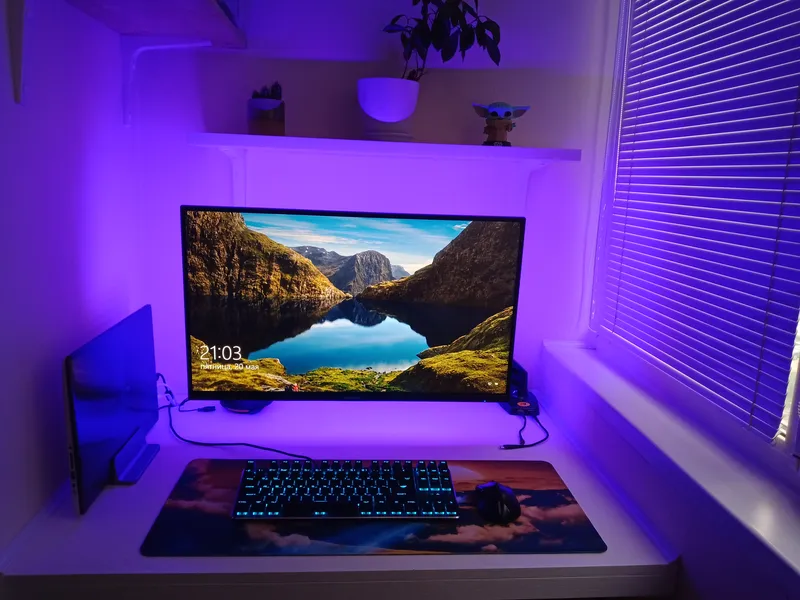
Friends, not long ago I transferred all my smart home devices to control viaHome Assistant, and also connected voice control to it via twoYandex Station Max, oneSonos One и Amazon Echo Dot 3. Last week I made such a mini-office for my wife on our loggia, and on the monitor I installed RGB backlighting with a controller, which is controlled both via Bluetooth and via a remote IR control.
The idea arose to turn this backlighting on and off by voice, and also to use several automations in Home Assistant to automatically turn on the backlighting when the laptop is working after sunset, and also automatically turn it off when the laptop is turned off. By the way, I also transferred turning the laptop on and off to voice control. In this instruction, I will show you how to find the command to control turning the backlighting on and off via Bluetooth, and then use it in Home Assistant.

Steps

1

Installing the Triones application and enabling Bluetooth packet recording
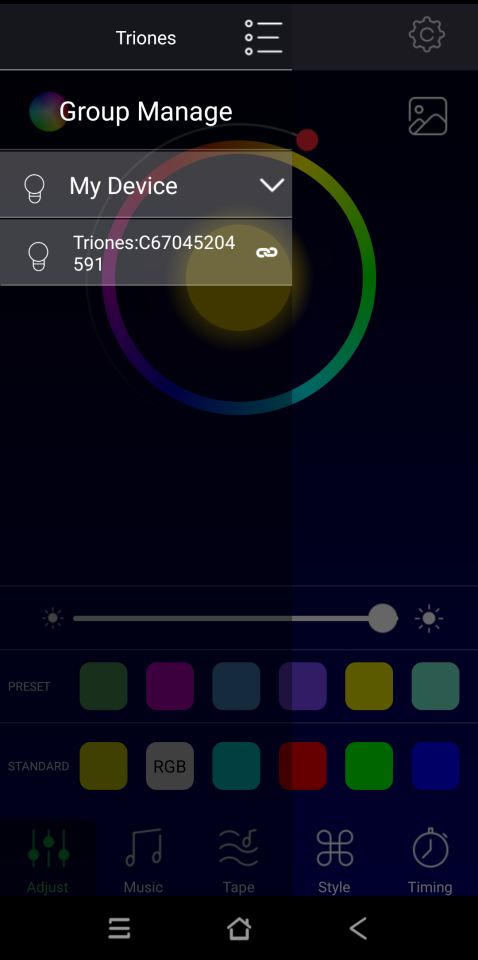
Installing the Triones application and enabling Bluetooth packet recording
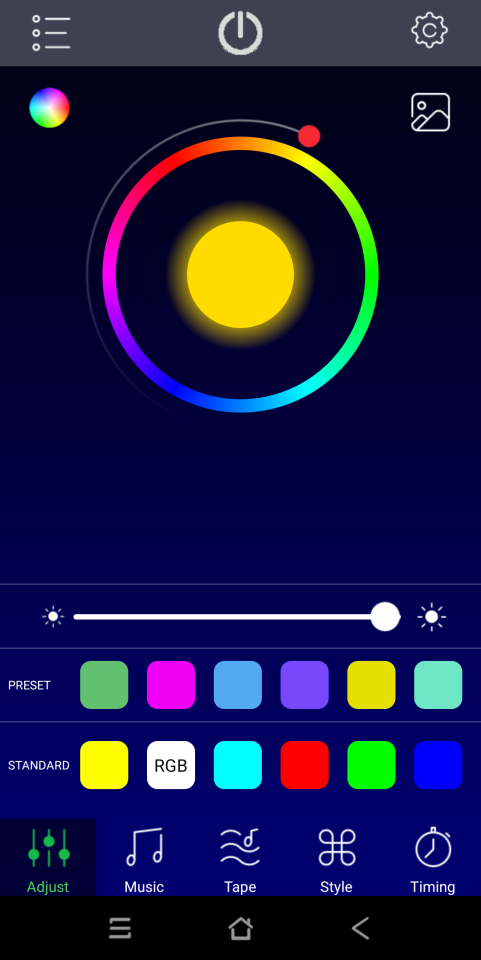
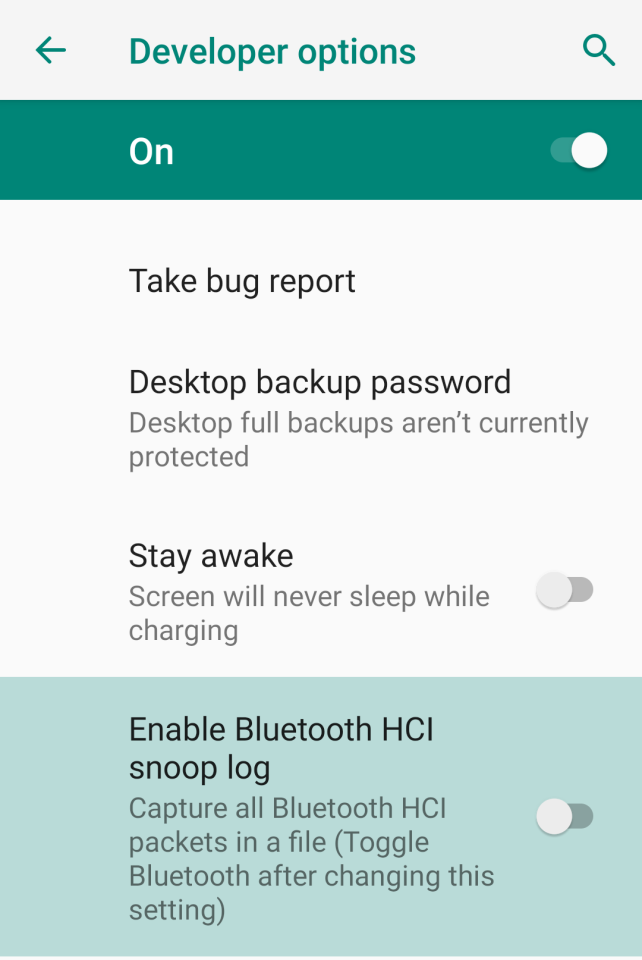
Turn on Bluetooth on your smartphone, install the Triones app, find our LED strip controller and try to connect to it.
Then, using the gray power button in the app, try to turn our LED strip on and off.
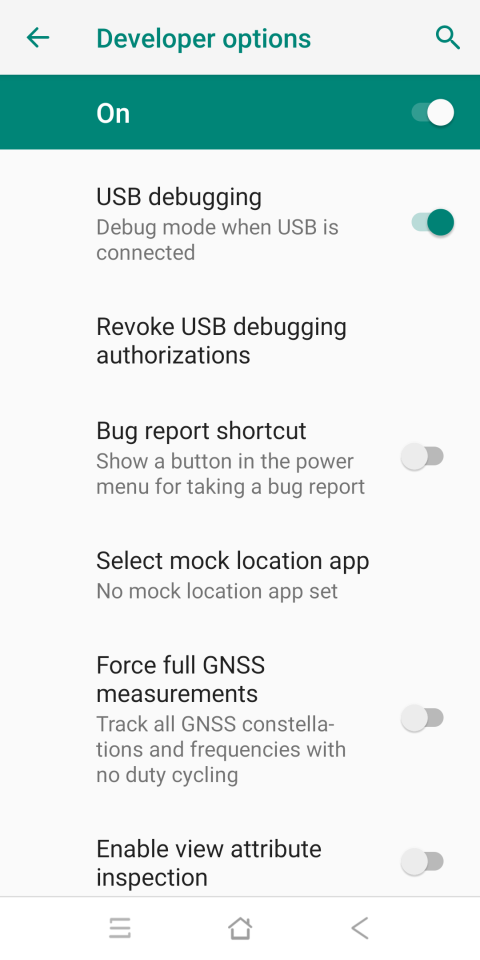
If everything works, go to developer settings on our smartphone and activate the line Enable Bluetooth HCI snoop log.
After that, turn Bluetooth off and on again on the smartphone. Return to the Triones app and try to turn the LED strip on and off about five times.
Next, return to developer settings, deactivate the line Enable Bluetooth HCI snoop log, and also activate the line USB debugging.
2

Copying Bluetooth packet files and analyzing them in WireShark
Copying Bluetooth packet files and analyzing them in WireShark
Connect the phone to the computer using a data cable. In my case, it's a Linux operating system. Open the terminal and enter the command
1
adb bugreport bugreportfolder
The command will copy the file bugreportfolder.zip to the home directory /home/username/.
Unpack the file and in the folder /home/username/bugreportfolder/FS/data/misc/bluetooth/logs find the file with the extension .cfa.
Install the program WireShark on the computer and open the specified file with it.
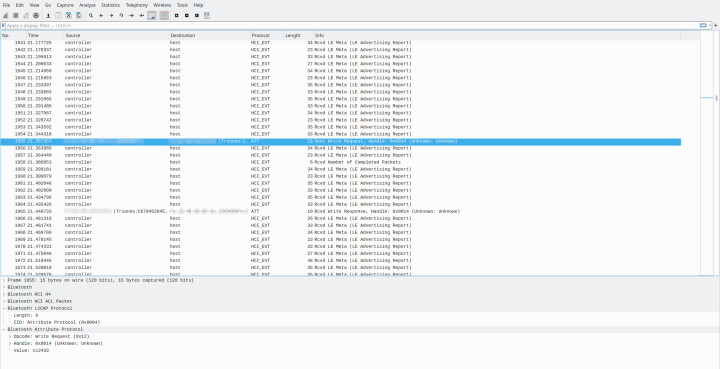
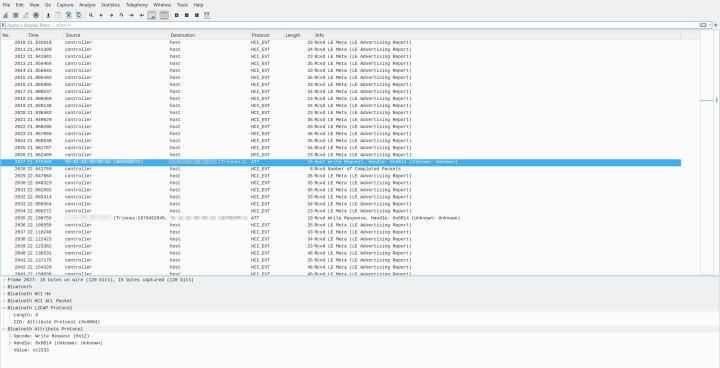
Find the line with the connection from our smartphone to the Bluetooth controller.
At the bottom of the program window, open the drop-down menu Bluetooth Attribute Protocol and see that the value of the field 'value' is cc2433. Next, find a similar line with the connection from our smartphone to the Bluetooth controller and see that the value of the field 'value' has changed to cc2333.
These are 3 bytes for turning off (cc2433) and turning on the controller (cc2333) of the LED strip! Your values will be different. Also, in the 'info' column, we see the following information Handle: 0x0014. This value will be required for controlling the controller from the terminal.
3

Turning on the LED strip controller from the terminal

Open the terminal of the device (in my case it's a Raspberry Pi 3b) where the Bluetooth adapter is located and enter the following commands:
1
bluetoothctl
2
scan on
3
pair XX:XX:XX:XX:XX:XX
Where XX:XX:XX:XX:XX:XX is the MAC address of the LED strip controller.
You will be prompted to enter a passkey for pairing, enter 0000.
After pairing, exit bluetoothctl:
1
scan off
2
exit
Next, enter the command to turn on the LED strip controller:
1
gatttool -i hci0 -b XX:XX:XX:XX:XX:XX --char-write-req -a 0x0014 -n cc2333
where hci0 is the name of the Bluetooth adapter.
XX:XX:XX:XX:XX:XXis the MAC address of the LED strip controller.
0x0014 is the Handle value.
cc2333 are 3 bytes written to the Bluetooth characteristic to turn on the LED strip.
The LED strip should turn on.
The command to turn it off will be, respectively, the following:
1
gatttool -i hci0 -b XX:XX:XX:XX:XX:XX --char-write-req -a 0x0014 -n cc2433
4

Adding the LED controller to Home Assistant

Adding the LED controller to Home Assistant
Go to the configuration file /config/configuration.yaml and create a virtual switch:
1
switch:
2
- platform: command_line
3
switches:
4
laptop_monitor_backlight:
5
command_on: gatttool -i hci0 -b XX:XX:XX:XX:XX:XX --char-write-req -a 0x0014 -n cc2333
6
command_off: gatttool -i hci0 -b XX:XX:XX:XX:XX:XX --char-write-req -a 0x0014 -n cc2433
7
friendly_name: 'Laptop Monitor Backlight'
Restart Home Assistant and create a Lovelace card with a virtual switch that can be controlled from the Home Assistant admin panel.
The downside is that you cannot read the written value from this Bluetooth characteristic and use it in Home Assistant to determine the current state of the LED strip (i.e., whether it is on or off). If you know how to do this, write in the comments.
If you also have the Yandex Smart Home integration configured,
then this switch will appear in Kvazar, which can be controlled by voice through Yandex Station, but more on that in the next instruction.
Profit :)

Discussion (0)

No comments yet. Be the first!

Maker

Avatar
Savva
Tashkent, UZ

Anton is the Managing Partner of Tinkster. He studied oil and gas engineering in the United States and also holds two honors degrees from Tomsk Polytechnic University.