intermediateSmart Home & IoT11-Dec-2021
Controlling Xiaomi Mijia DC Inverter Tower Fan over local network via Linux

Anton Shagaev
Tashkent, UZ
1 day
--
24
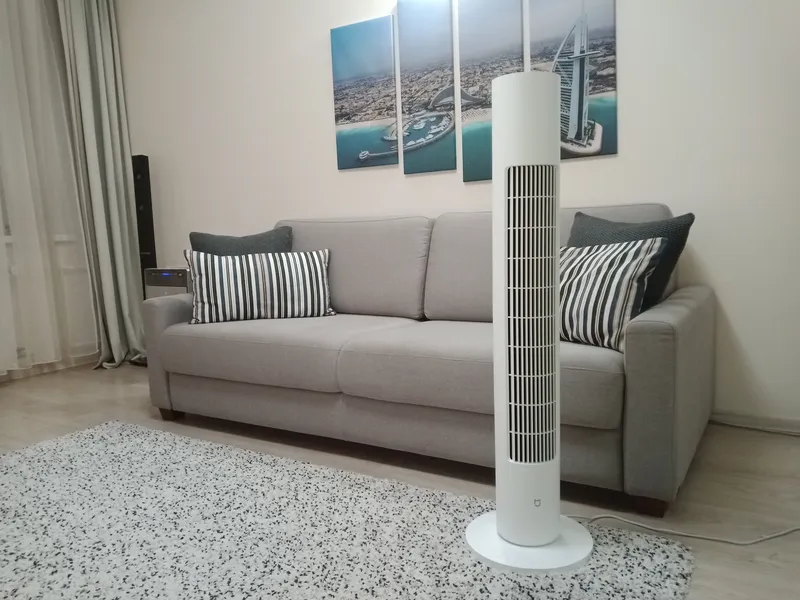
Friends, this summer I acquired a wonderful tower fan for my home from a Chinese company Xiaomi. Since all my smart home devices are managed by Raspberry Pi, I wanted to control this device in the same way. In this guide, we will look at a method for controlling this fan from the command line. I think it won't be difficult for you to 'attach' command-line control to voice control for Alice or Alexa via 'webhooks' (for example, through the service Domovenok Kuzya). Currently, 3 voice assistants 'live' in my home - two Yandex Station Max and one Sonos One with Alexa - and they all control my smart home devices.
What you'll need
Materials
- 1 pc
- 1 pc
- Router with radio module (aka WiFi)1 pc
- Smartphone with Android OS for token access1 pc
Steps
1
Obtaining a token for accessing the fan
Obtaining a token for accessing the fan
Obtaining a token for accessing the fan
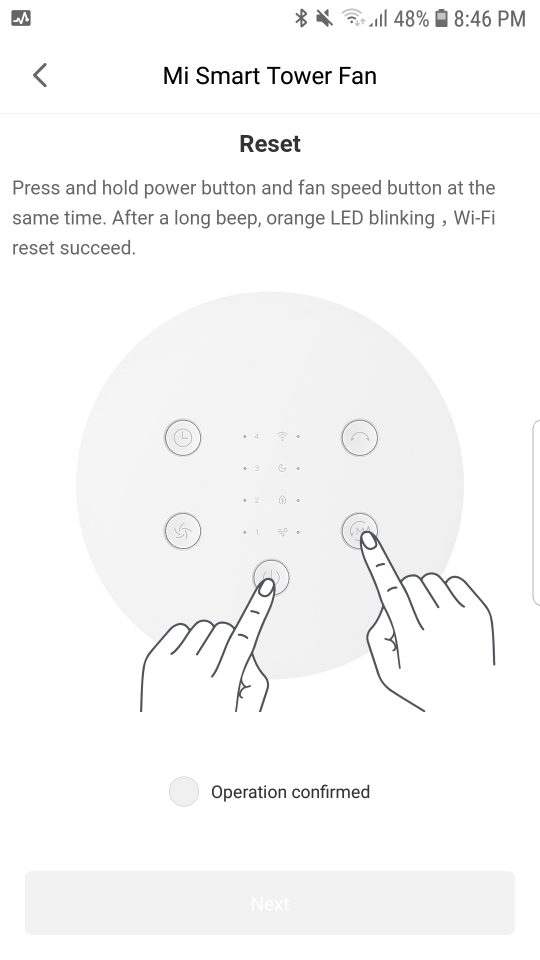
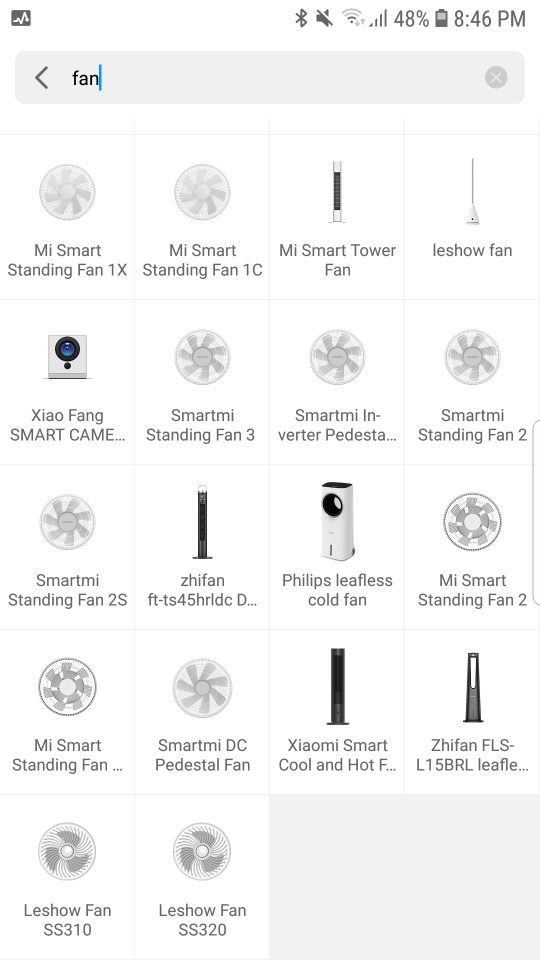
To get an access token for our fan, we need the management app for this fan from Xiaomi (Mi Home) on Android OS, but only a specific version, namely version 5.4.49. You might ask why? The thing is that Xiaomi developers forgot to turn off the application debug log for version 5.4.49, and all the actions performed by the app are recorded in a text file on your smartphone. The app can be downloaded from here. After logging into your account in the app, you must change the region and set it to Mainland China. Turn on Bluetooth on the smartphone, open the Mi Home app on the smartphone, find our fan in the list (MI Smart Tower Fan):
On the fan, press the buttons as shown in the picture to put the fan into pairing mode:
Don't forget to check the box Operation confirmed and then press Next. Next, try to pair with our fan. When everything is successful, go to the folder on the smartphone via any file manager (for example EZ File Explorer) using this path:
Internal storage/SmartHome/logs/plug_DeviceManager.
Inside, you will find a file with a similar name, in my case – 2021-12-10.txt. This is the Mi Home app debug log. On English-language smartphones, the name 'Internal Storage' will be called Internal Storage. So, open this file and see lines like:
tinkster@almalinux:~#
1SmartHome 588874:[DEBUG]-12-10 01:53:21.410 processResult in result={"code":0,"message":"ok","result":{"list":[{"did":"459261128","token":"yjmpj534m4qgugrig1q42dzwcyze4jxs","longitude":"0.00000000","latitude":"0.00000000","name":"Mi Smart Tower
yjmpj534m4qgugrig1q42dzwcyze4jxs – this is your access token. Hooray, you have found the most important thing for this technology! In your case, the token will naturally be different.
2
Turning on the fan via command line in Linux
To connect to the fan, we need to meet two conditions. First, log into the router (usually at address 192.168.0.1) and find out the fan's IP address on the local network, and also set it up so that the router automatically assigns the same local IP address to the fan's MAC address. In my case, this address is –192.168.0.43. Second, you need to log into the terminal on the Raspberry Pi and install the Xiaomi device management package from there, which is written in Python:
tinkster@almalinux:~#
1pip3 install python-miio
We also need to install the following libraries:
tinkster@almalinux:~#
1sudo apt-get install libffi-dev libssl-dev
After all installations, I was able to turn on my fan by executing the following command:
tinkster@almalinux:~#
1miiocli fanp9 --model dmaker.fan.p9 --ip 192.168.0.43 --token yjmpj534m4qgugrig1q42dzwcyze4jxs on
To turn it off, you need to execute respectively:
tinkster@almalinux:~#
1miiocli fanp9 --model dmaker.fan.p9 --ip 192.168.0.43 --token yjmpj534m4qgugrig1q42dzwcyze4jxs off
If you want to change the fan speed (from 0 to 100%), you can execute the following command (in this example, the speed is set to 35%):
tinkster@almalinux:~#
1miiocli fanp9 --model dmaker.fan.p9 --ip 192.168.0.43 --token yjmpj534m4qgugrig1q42dzwcyze4jxs set_speed 35
If you need the fan to oscillate, then execute the following command:
tinkster@almalinux:~#
1miiocli fanp9 --model dmaker.fan.p9 --ip 192.168.0.43 --token yjmpj534m4qgugrig1q42dzwcyze4jxs set_oscillate 1
To disable oscillation, execute the following command:
tinkster@almalinux:~#
1miiocli fanp9 --model dmaker.fan.p9 --ip 192.168.0.43 --token yjmpj534m4qgugrig1q42dzwcyze4jxs set_oscillate 0
To find out all the commands of the miiocli module, you need to execute the following command:
tinkster@almalinux:~#
1miiocli –help
Conclusion
Friends, that's all. I hope this guide is useful to you and you can control your fan via the command line or link it to voice control via 'webhooks', as I did.
For reference, here is a list of devices supported by the management package python-miio:
- Xiaomi Mi Robot Vacuum V1, S4, S4 MAX, S5, S5 MAX, S6 Pure, M1S, S7
- Xiaomi Mi Home Air Conditioner Companion
- Xiaomi Mi Smart Air Conditioner A (xiaomi.aircondition.mc1, mc2, mc4, mc5)
- Xiaomi Mi Air Purifier 2, 3H, 3C, Pro, Pro H (zhimi.airpurifier.m2, mb3, mb4, v7, vb2)
- Xiaomi Mi Air (Purifier) Dog X3, X5, X7SM (airdog.airpurifier.x3, airdog.airpurifier.x5, airdog.airpurifier.x7sm)
- Xiaomi Mi Air Humidifier
- Xiaomi Aqara Camera
- Xiaomi Aqara Gateway
- Xiaomi Mijia 360 1080p
- Xiaomi Mijia STYJ02YM (Viomi)
- Xiaomi Mijia 1C STYTJ01ZHM (Dreame)
- Xiaomi Mi Home (Mijia) G1 Robot Vacuum Mop MJSTG1
- Xiaomi Roidmi Eve
- Xiaomi Mi Smart WiFi Socket
- Xiaomi Chuangmi Plug V1 (1 Socket, 1 USB Port)
- Xiaomi Chuangmi Plug V3 (1 Socket, 2 USB Ports)
- Xiaomi Smart Power Strip V1 and V2 (WiFi, 6 Ports)
- Xiaomi Philips Eyecare Smart Lamp 2
- Xiaomi Philips RW Read (philips.light.rwread)
- Xiaomi Philips LED Ceiling Lamp
- Xiaomi Philips LED Ball Lamp (philips.light.bulb)
- Xiaomi Philips LED Ball Lamp White (philips.light.hbulb)
- Xiaomi Philips Zhirui Smart LED Bulb E14 Candle Lamp
- Xiaomi Philips Zhirui Bedroom Smart Lamp
- Huayi Huizuo Lamps
- Xiaomi Universal IR Remote Controller (Chuangmi IR)
- Xiaomi Mi Smart Pedestal Fan V2, V3, SA1, ZA1, ZA3, ZA4, ZA5 1C, P5, P9, P10, P11
- Xiaomi Rosou SS4 Ventilator (leshow.fan.ss4)
- Xiaomi Mi Air Humidifier V1, CA1, CA4, CB1, MJJSQ, JSQ, JSQ1, JSQ001
- Xiaomi Mi Water Purifier (Basic support: Turn on & off)
- Xiaomi Mi Water Purifier D1, C1 (Triple Setting)
- Xiaomi PM2.5 Air Quality Monitor V1, B1, S1
- Xiaomi Smart WiFi Speaker
Discussion (0)
No comments yet. Be the first!
Maker
Anton Shagaev
Tashkent, UZ
Anton is the Founding Engineer at Tinkster. He translates industrial reliability into software architecture, ensuring the platform's core is built to last. Anton studied oil and gas engineering in the United States and also holds two honors degrees from Tomsk Polytechnic University.
Related Projects


AI Project Assistant
Tinkster Neural Core
Hi! I am the AI assistant for this project. Ask me any questions about the assembly, code, or components.