Tinkster Logo
advancedSmart Home & IoT

Adaptive TV backlighting in your home

Author
Savva
Tashkent, UZ
1 day
10
2
Project Overview
Cover
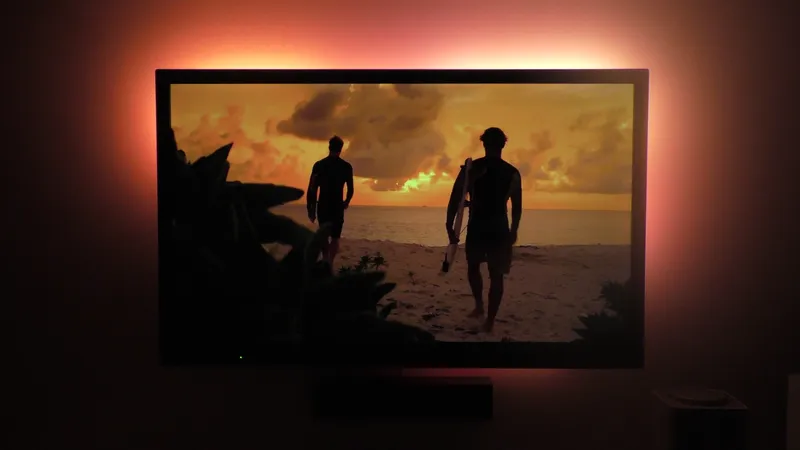
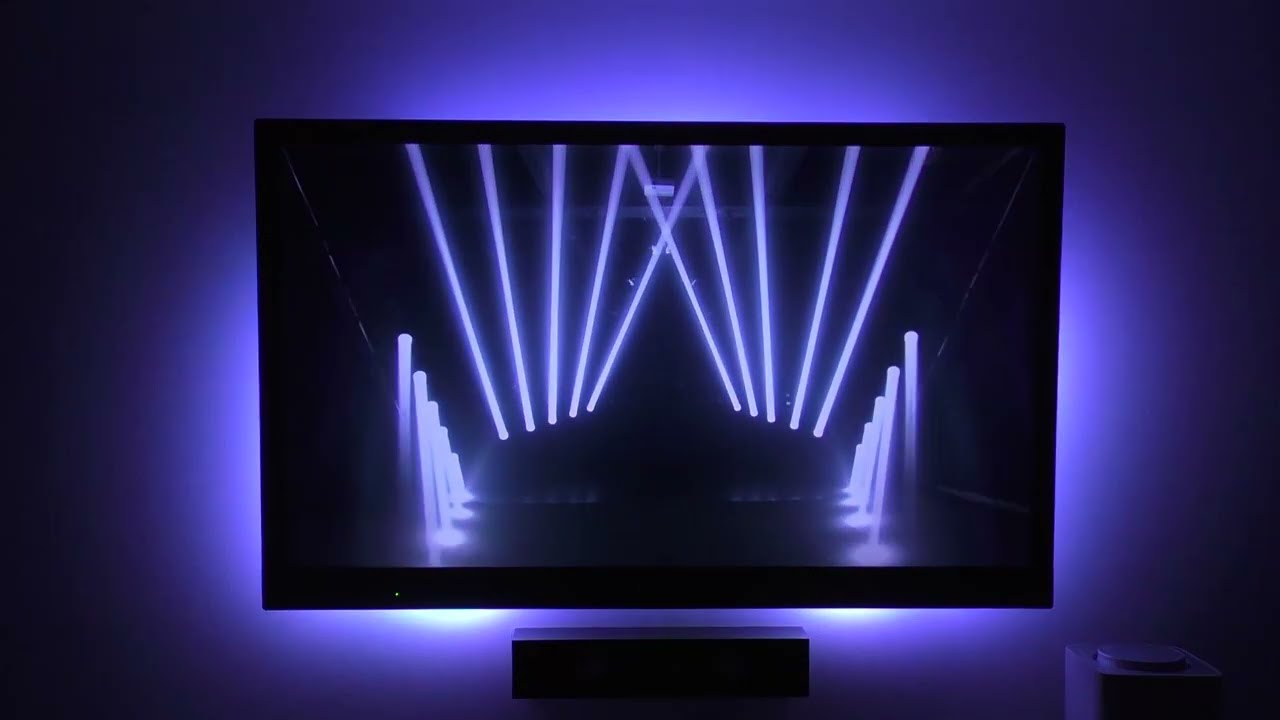
Friends, today we will be creating ambilight or adaptive backlighting technology, which was first presented by Philips. Ambilight is dynamic backlighting that 'analyzes' the colors of individual pixels along the perimeter of the screen image and reproduces diffused light onto the wall surface behind the TV body, repeating the colors taken from the perimeter. This effect visually increases the size and light intensity of the image.
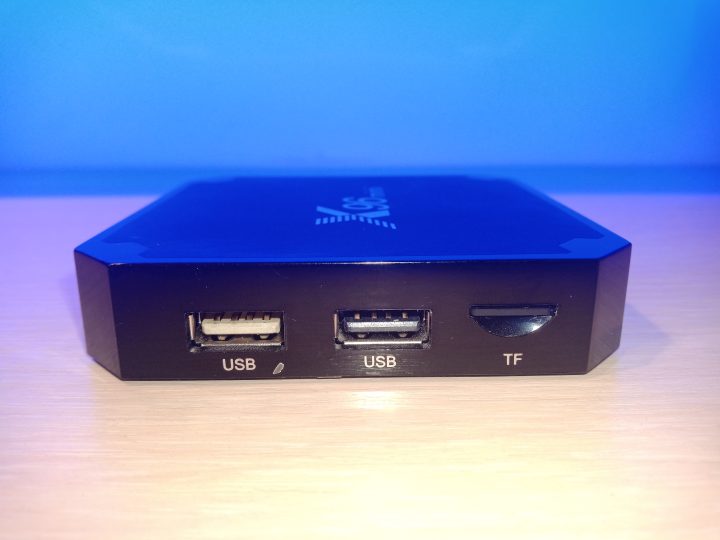
Our homemade ambilight will not work on regular TVs that receive digital or cable television. For this we will need a set-top box with a media center Kodi, and from it we can take any video stream and apply this technology. The maximum screen refresh rate through the set-top box (x96 Mini) with the Kodi media center is 60 Hertz.

What you'll need

Materials

Steps

1

Installing Kodi media center on X96 Mini TV box
Installing Kodi media center on X96 Mini TV box
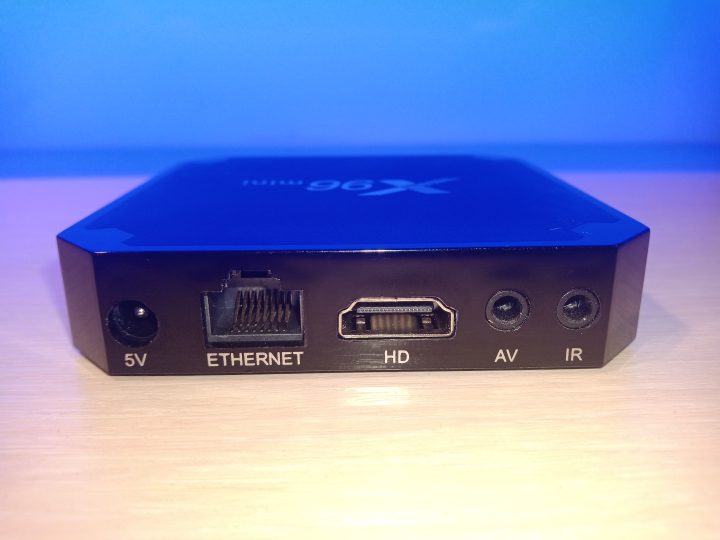
The Kodi media center will be based on LibreELEC or a stripped-down Linux, sufficient to run Kodi from it.
We will not flash the X96 Mini, but will install Kodi on a microSD card, which we will then insert into the TV box and boot Kodi from it.
Download the Kodi image from here. Then reboot into Windows and download the program Rufus and use it to install the downloaded LibreELEC image onto the microSD card.
Next, download the file dtb.img and copy it to the root of the microSD card, overwriting the existing file. Insert the card into the microSD card slot on the TV box.
Next, take a toothpick and insert it into the AV port on the TV box and press the button switch inside with it. While holding the switch pressed, power on the box. At this moment, Kodi will start booting from the SD card.
2

Connecting a remote control in Kodi on LibreELEC
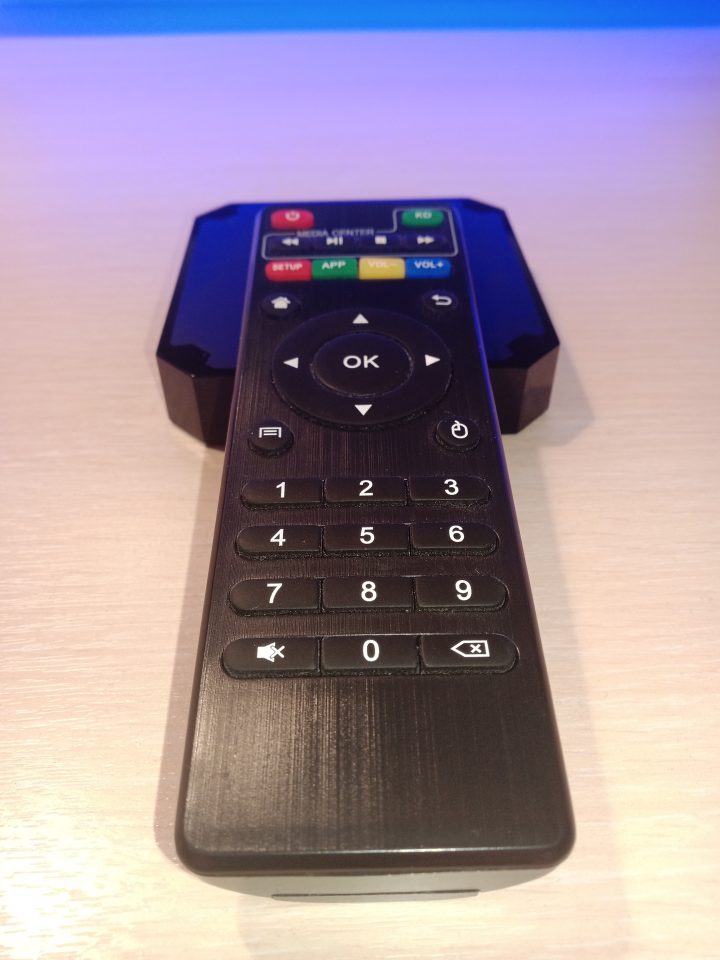
Connecting a remote control in Kodi on LibreELEC
By default, the set-top box comes with a remote control.
If you install Kodi on LibreELEC, the remote will stop working. To make the remote work again, you need to copy the file remote.conf to the set-top box. I recommend first connecting the set-top box to a router or switch via cable. If you need Wi-Fi connection, you can do that later after connecting the remote control.
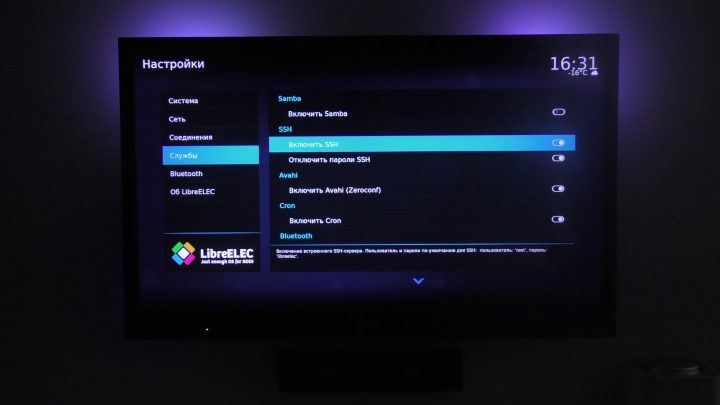
At this stage, you need to know the local IP address of the set-top box. You can do this by connecting a USB keyboard to the set-top box, first going to Settings — LibreELEC — Services using the keyboard arrow keys and selecting Enable SSH.
You can exit sections using the ESC key, and move the switch sliders using Enter. Then, in the same way, go to Settings — LibreELEC — System Information and view the current IP address of the set-top box.
Copy the remote.conf file to the set-top box:
1
scp ~/remote.conf root@192.168.0.XXX:/storage/.config
where 192.168.0.XXX is the LibreELEC address on the local network
Reboot the set-top box, the remote should start working.
3

Installing Hyperion service on Kodi

Installing Hyperion service on Kodi
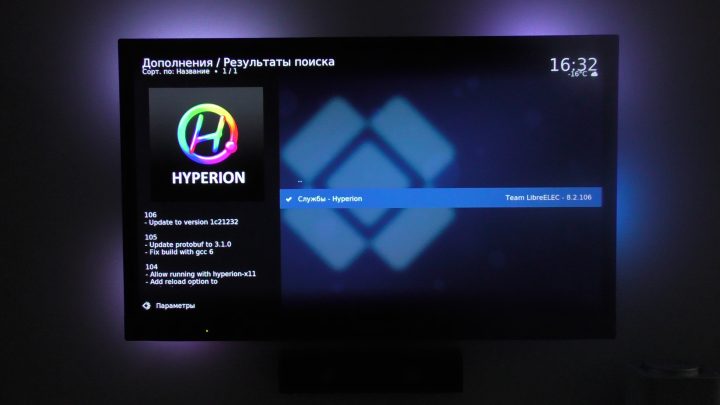
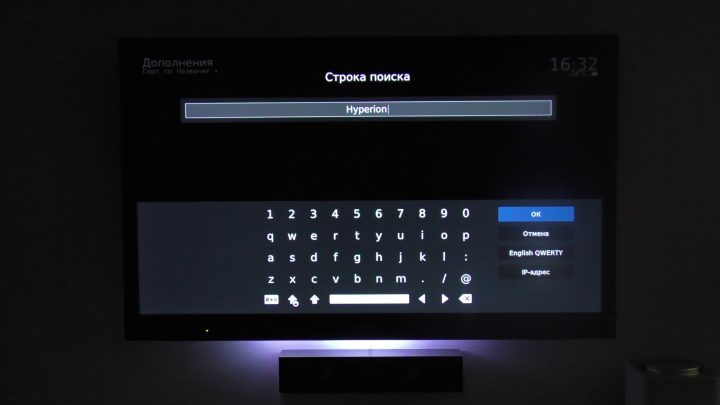
Using the remote control in the left Kodi menu, we go to Add-ons, then select Search in the upper right corner and type in the search bar Hyperion.
Press Enter, find this service and install it (the set-top box must be connected to the internet via the RJ-45 port or Wi-Fi).
I also recommend immediately setting up SSH access to the TV set-top box from another computer. To do this, you need to set a static IP address in Kodi itself and subsequently access the set-top box via SSH using the command in Linux (in Windows this is done via Putty):
1
ssh root@ 192.168.0.XXX
Default password libreelec.
The password, unfortunately, cannot be changed, but you can create encryption keys, move the public key to the TV set-top box from the computer you will be accessing it from, and disable password login to LibreELEC. To do this on Linux, open a terminal on the computer and enter:
1
cd ~/.ssh
2
ssh-keygen -t rsa
The system will prompt you to enter a filename:
1
Generating public/private rsa key pair.
2
Enter file in which to save the key (/home/user/.ssh/id_rsa):
Enter, for example, LE_rsa and press Enter.
Then copy the public key to LibreELEC:
1
ssh-copy-id -i LE_rsa.pub root@192.168.0.XX
Next, enter the command:
1
ssh-add LE_rsa
To prevent the changes from being reset after a computer reboot, open the config file:
1
nano ~/.ssh/config
and insert the line into it:
1
IdentityFile ~/.ssh/LE_rsa
Save the file.
4

Arduino Uno firmware

Arduino Uno firmware
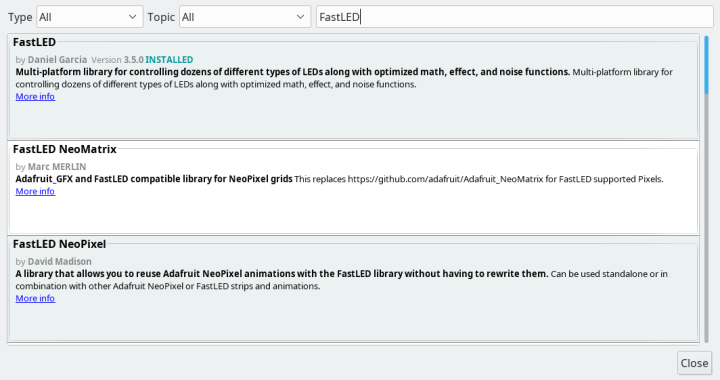
Connect Arduino Uno to the computer, open Arduino IDE, install the FastLED library (Tools – Manage Libraries) and flash the microcontroller with this attached sketch file.
In this sketch, you will need to change three parameters: MAX_LEDS, LED_TYPE and DATA_PIN.
MAX_LEDS – total number of LEDs
LED_TYPE – type of LED strip used (in my case it's WS2812B)
DATA_PIN – digital pin on Arduino Uno for data transmission (in my case it's the 13th digital pin)
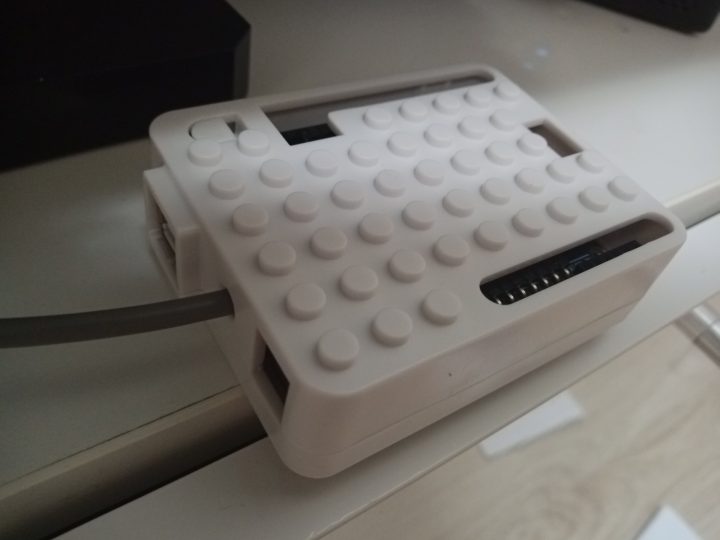
I recommend installing the Arduino Uno itself in such a beautiful box.
5

Addressable LED strip installation and connection diagram
Addressable LED strip installation and connection diagram
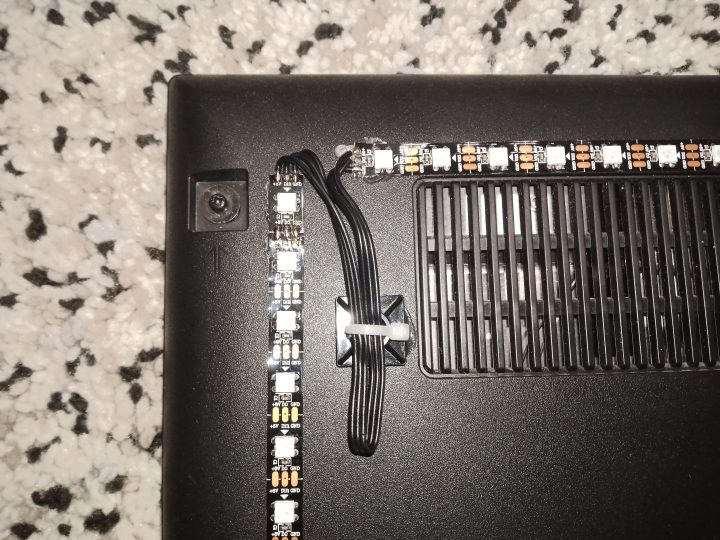
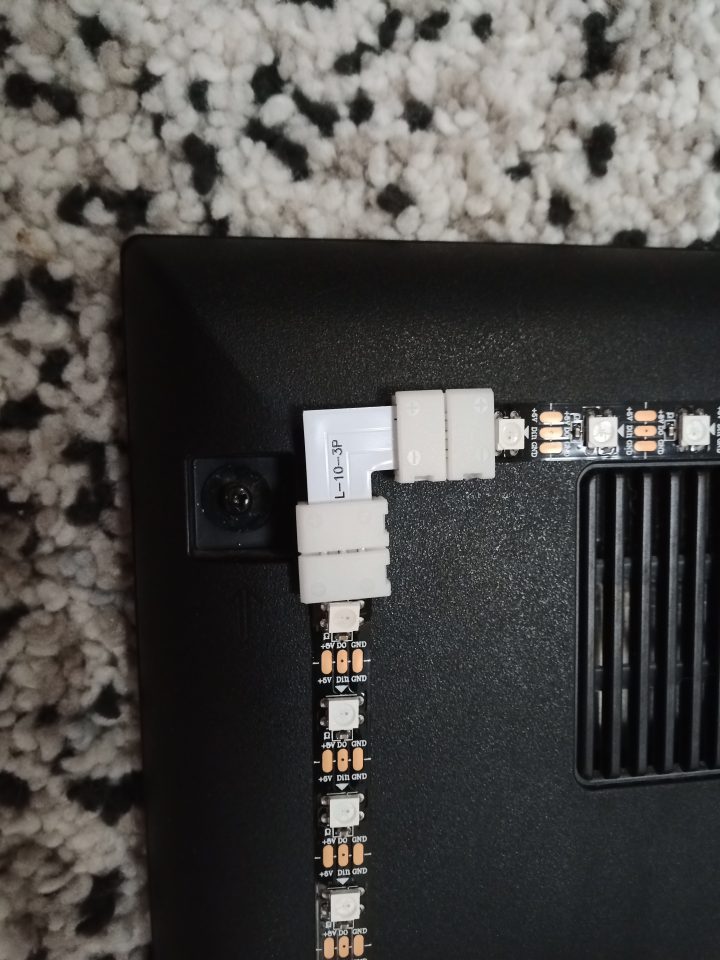
Carefully place our TV face down on the floor, preferably on a carpet. Before doing this, thoroughly vacuum the carpet to eliminate any possibility of damaging the matrix with foreign objects.
Determine the starting corner for applying the LED strip (for me, it's the top right corner when looking at the back of the TV). Also, follow the direction of the strip (indicated by arrows on the strip), this is very important.
Also, the number of horizontal LEDs must be equal on the top and bottom; the number of LEDs on the sides (vertical) can be different. This rule is dictated by the Hypercon environment of the configuration file for the service Hyperion.
Try to position the LEDs as close to each other as possible at the corner joints; the color gamut in the corners will be much more saturated later. .
Connecting wires at the corner joints can be neatly arranged using platforms with cable ties or wire platforms.
Also, I recommend removing the double-sided tape from the platforms using isopropyl alcohol and securing them with thermal glue. I recommend additionally securing the beginning and end of any LED strip segment with thermal glue as well.
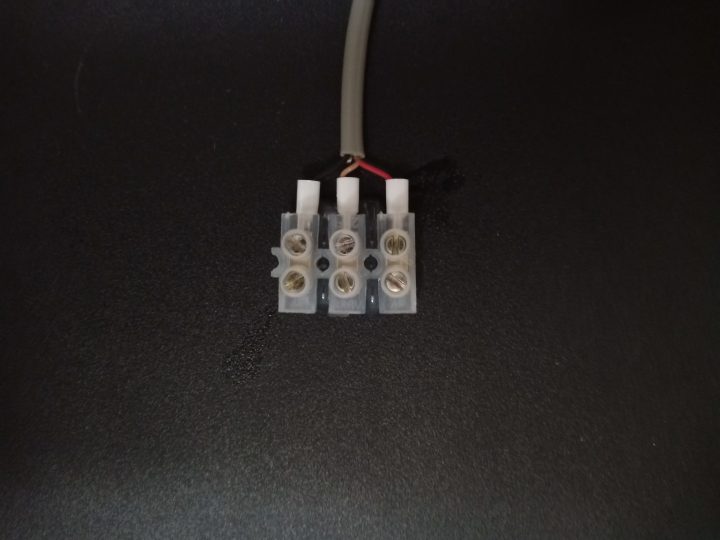
Connect the beginning of the LED strip with a 3-core wire to a terminal connector, and secure the connector itself to the back of the TV case using thermal glue.
Also, do not use corner connectors for the strip, as I initially did.
I encountered a lot of problems even after soldering the contacts. For some reason, when voltage was applied to the strip, one LED constantly glowed green. As soon as I disconnected the corner connectors and soldered the corner contacts of the LED strip segments with regular wires, the problem disappeared. Then I had to add one LED each to the top and bottom on the side strip segments because the corner connectors took up that space.
I recommend checking the contacts with a multimeter after each soldering to immediately rule out defects.
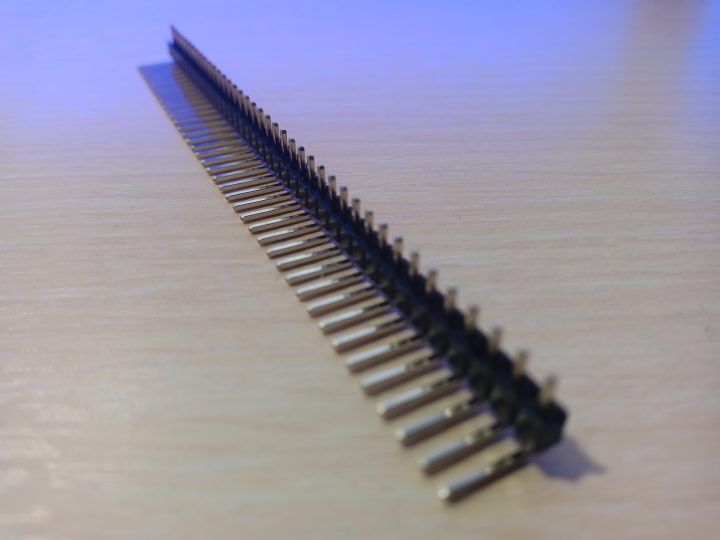
Next, insert the corner connector board into the Arduino Uno. I recommend installing the entire board at once, as the fixation of the connectors will be much better than installing them individually.
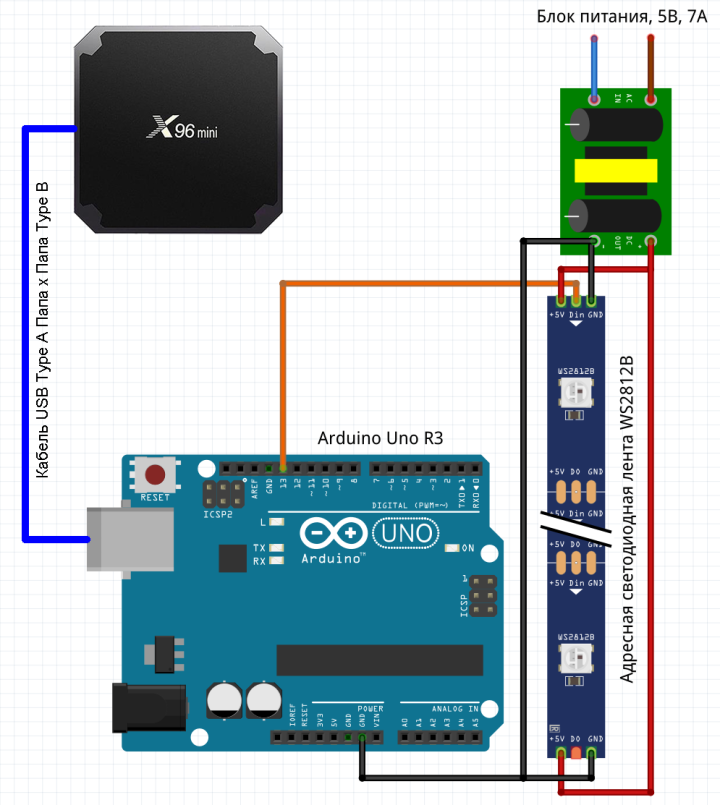
Solder all wires according to the diagram:
We will supply power from both ends of the strip because if supplied from one end (in my case, the total strip length is 2.7 meters), there will be a significant voltage drop at the other end, and the LEDs will not shine as brightly.
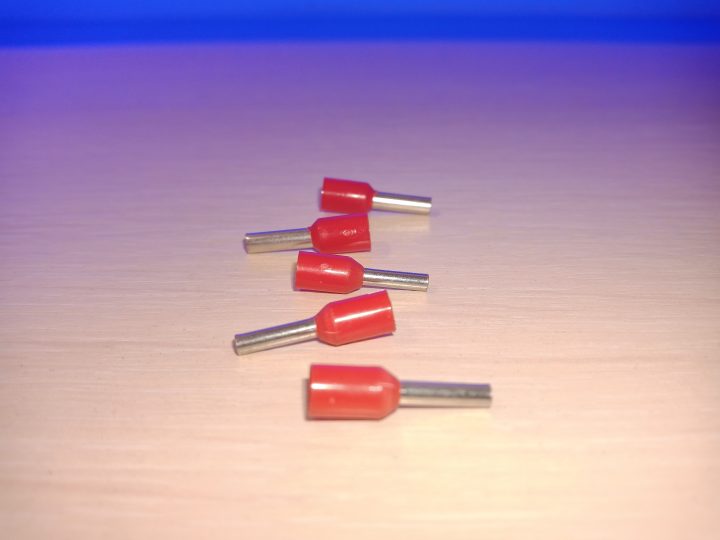
For wires connecting to the power supply connector and the terminal connector on the TV, I recommend using crimp connectors.
Для проводов подсоединяющихся к коннектору блока питания и терминальному коннектору на телевизоре рекомендую использовать обжимные соединители.
6

Setting up the Hyperion service configuration file via Hypercon
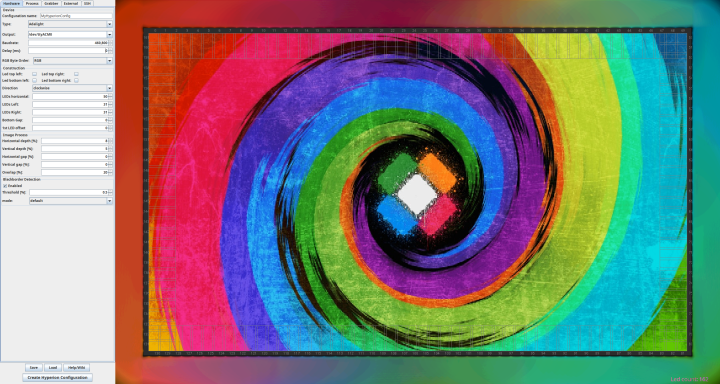
Setting up the Hyperion service configuration file via Hypercon
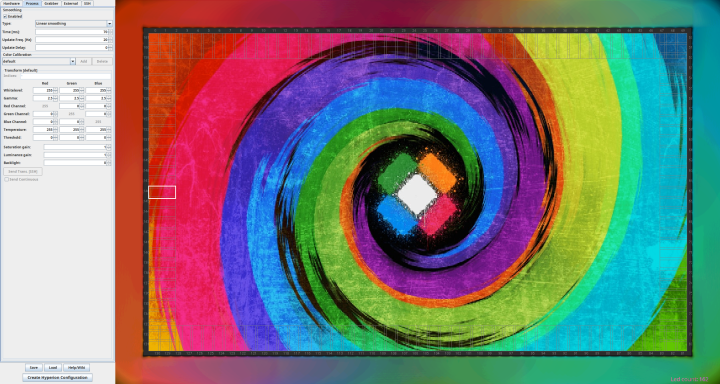
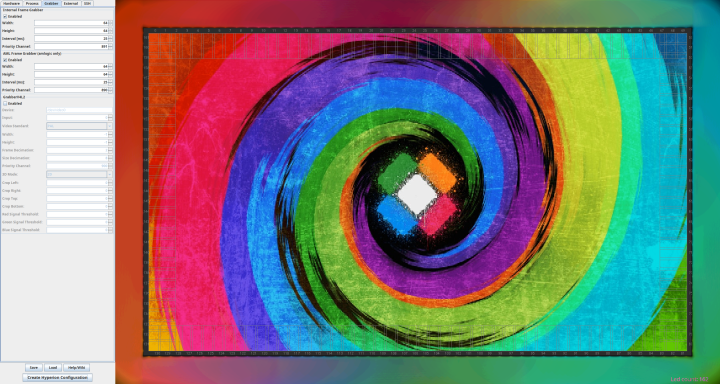
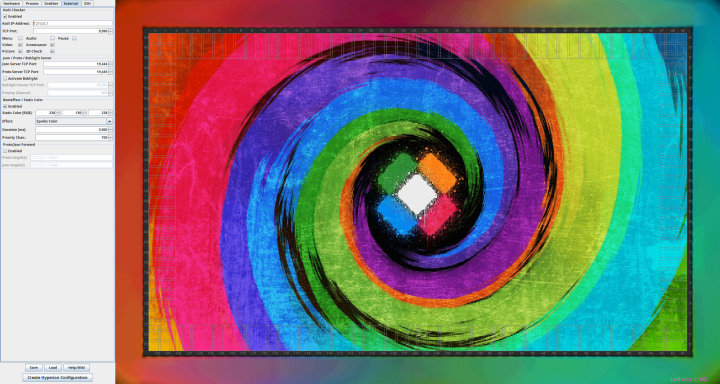
screenshot_20220123_001254
Install Java and download Hypercon for LibreELEC to your computer (in my case it's a computer with Kubuntu):
1
sudo apt install openjdk-7-jre
2
cd ~
3
wget http://releases.libreelec.tv/hypercon-LE.jar
In Windows, simply download this file from the link
http://releases.libreelec.tv/hypercon-LE.jar
and run it. Java can be downloaded from the link.
Launch Hypercon:
1
java -jar ./hypercon-LE.jar
A colorful window with a whole set of various tabs will open.
Hardware tab:
In Type select Adalight
In Output select /dev/ttyACM0
In Baudrate set the speed 460800
In RGB set byte order to RGB
In Direction set the direction of the tape. In this case, the direction is determined if you are looking at the TV matrix.
In LEDs horizontal set the number of LEDs of one strip horizontally (you should have an equal number of them at the top and bottom)
In LEDs left accordingly, set the number of LEDs on the left (left, if looking at the TV matrix)
In LEDs Right accordingly, set the number of LEDs on the right (right, if looking at the TV matrix)
In Bottom gap set 0, if you have no gaps in the horizontal section of the tape at the bottom. A gap may exist if, for example, your TV is on a stand and it is impossible to lay a continuous piece of tape in that place.
1st LED offset, if you play with this parameter, you can precisely adjust the location from which your first LED of the tape will start. In my case, the tape started in the upper left corner (when looking at the TV matrix) and then went clockwise.
In Horizontal depth (horizontal pixel capture depth) by default will be 8 percent and this value will be quite sufficient and can be left unchanged.
The same can be left in Vertical depth, by default there will be a value of 5 percent.
In Overlap I set 20 percent, so that the colors of the LEDs overlap each other by 20 percent and the transitions are smoother.
In Threshold can be set 0.5%, this is the magnitude of the start of black bar detection on the image.
Process tab:
Check the box Smoothing, if it was not checked, in Time set 70 milliseconds, and the refresh rate in Update Freq. (Hz) set 30. The remaining parameters in this tab can be left unchanged.
Grabber Tab:
Activate the screen capture services (grabbers) Internal Frame Grabber and AML Frame Grabber. Set the intervals the same at 25 milliseconds, but with different priorities. For the internal grabber set 891, and for the AML grabber 890. With this priority arrangement, practically all movies and TV programs are captured without problems for me.
External Tab:
In this tab, you can uncheck the boxes for Menu, Audio и Pause. In Effect select the desired effect when starting the Hyperion service, and also select the static color of the LEDs in Static Color, when no grabber can capture pixels from the screen.
SSH Tab:
In this tab, you can configure SSH access and automatically copy the configuration file to the set-top box, but I do not recommend doing this, because for me the file was constantly copied with some cached values and I had to subsequently copy this file to the set-top box manually.
After all manipulations, click the button Create Hyperion Configuration and save it to the desired location on the computer. By default, the configuration file name will be hyperion.config.json
Next, connect Arduino Uno to the set-top box x96 Mini via cable USB Type A Male x Male USB Type B, connect the x96 Mini itself via HDMI to the TV. Plug the LED strip adapter (having previously connected it to the strip) into the power outlet. Plug the x96 Mini into the power outlet. Wait for Kodi to load.
You can copy the file to the set-top box from the terminal using the following command:
1
scp ~/hyperion.config.json root@192.168.0.XXX:/storage/.kodi/userdata/addon_data/service.hyperion
After making changes, access the set-top box via SSH and restart the Hyperion service with the following command:
1
systemctl restart service.hyperion
Try playing some movie, having first copied it to a flash drive and inserted it into the set-top box. If everything is done correctly, the TV backlight will dynamically change according to the colors around the perimeter of the screen image.
Friends, that's all, if you have any questions, write in the comments and I will try to answer them.

Discussion (0)

No comments yet. Be the first!

Maker

Avatar
Savva
Tashkent, UZ

Anton is the Managing Partner of Tinkster. He studied oil and gas engineering in the United States and also holds two honors degrees from Tomsk Polytechnic University.